Work your orders every day (for customer care)
Call, pick the status, enter the delivery fee – the right message goes out on its own.
- Open the order and call or WhatsApp the customer.
- The rider is picked by state – change it only if needed.
- Tap Delivered, Rescheduled, Call back or Cancelled.
- Enter the delivery fee for this location when you mark it delivered.
-
1Start with New orders
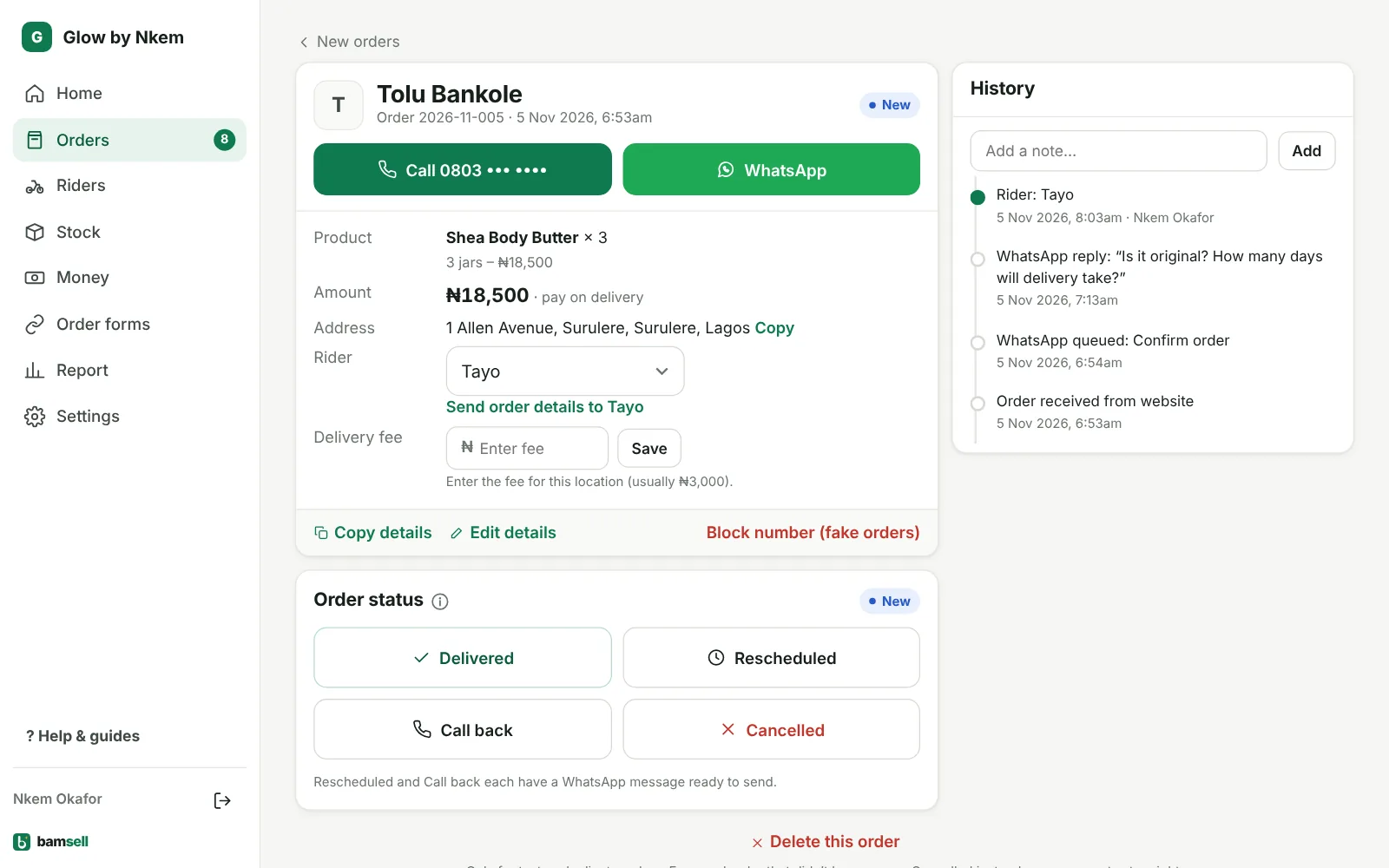
The Orders page opens on New. Each customer already got the Confirm order message. Tap a name to open the order.
-
2Call or WhatsApp
Use the big Call and WhatsApp buttons. Product, amount and address are right under them so you can confirm while you talk.
In Bamsell -
3Check the rider
Only riders who cover the customer’s state are listed. If just one does, it’s already chosen. Tap Send order details to WhatsApp the rider the name, phone, address and amount to collect.
-
4Rescheduled
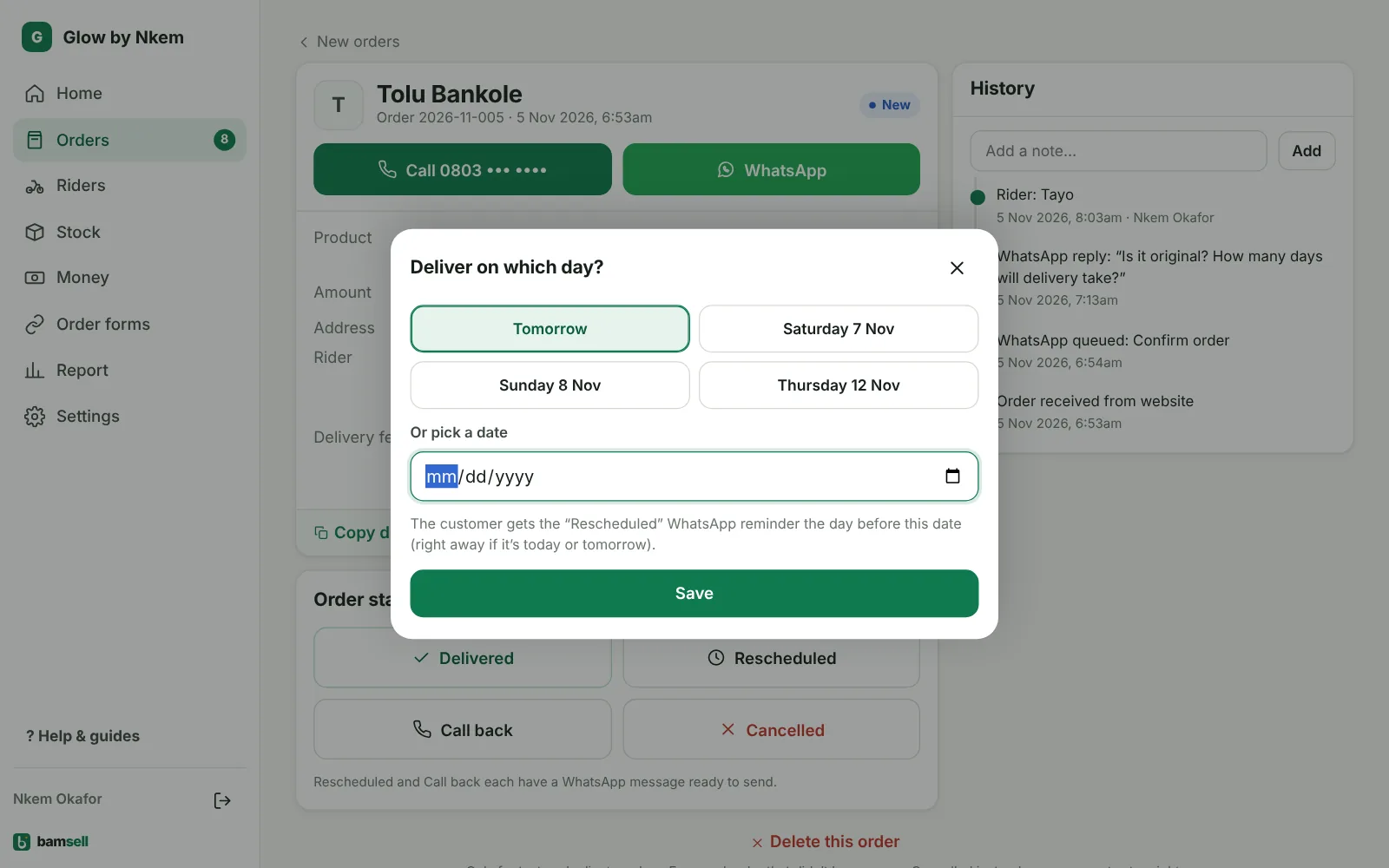
If the customer wants another day, tap Rescheduled and pick the day. They get a WhatsApp reminder the day before that date (from 9am; right away if it’s today or tomorrow), and the order shows under Rescheduled on that day.
In Bamsell -
5Call back
Couldn’t reach them? Tap Call back. They get a polite message asking when to call. Find these orders under the Call back tab. An order still on Call back after 30 days moves to Cancelled by itself (reason: Unreachable many times).
-
6Delivered
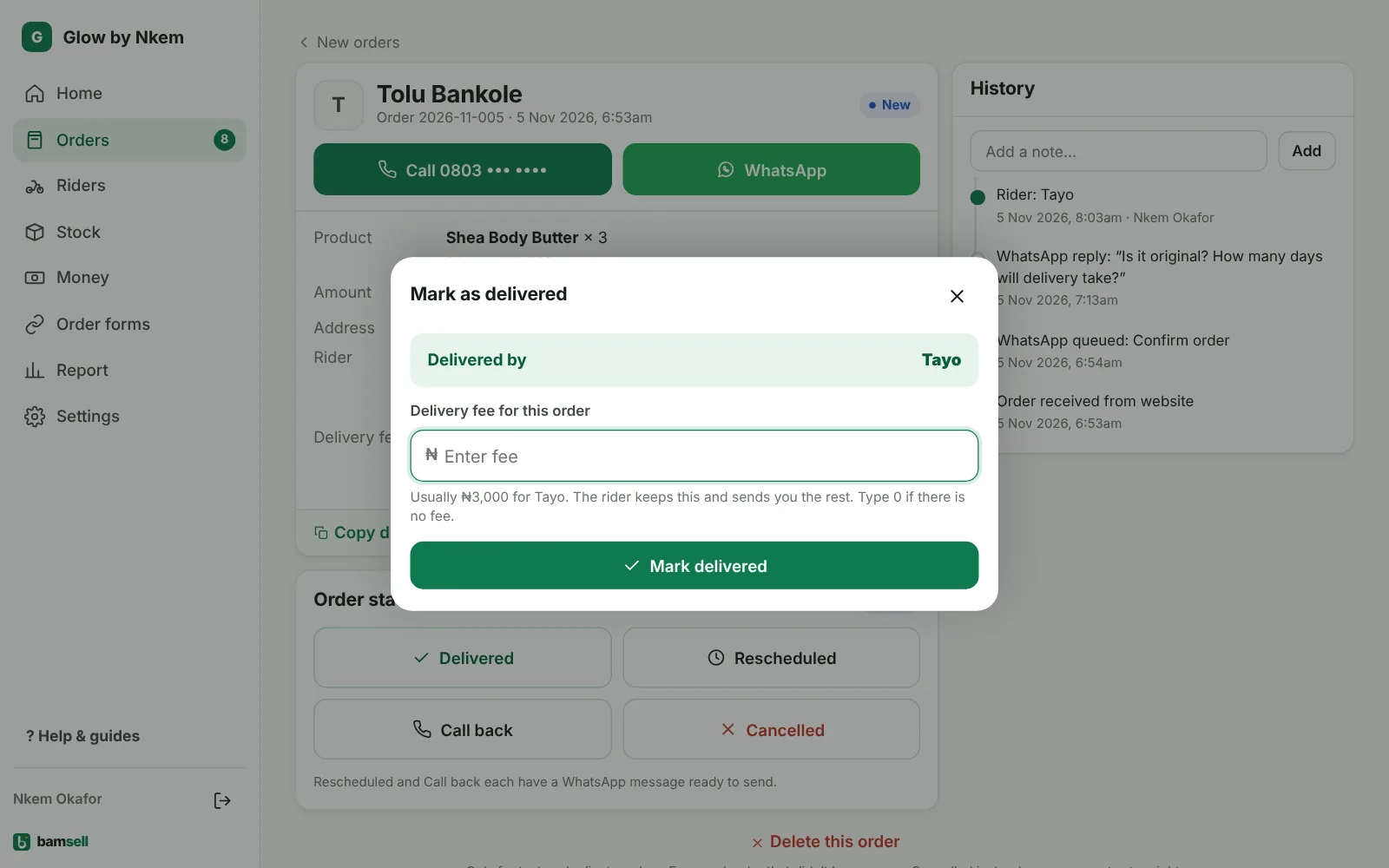
When the rider confirms, tap Delivered and type the delivery fee for this location (fees differ by area). Stock and the rider’s balance update immediately.
In Bamsell -
7Cancelled
Tap Cancelled and pick a reason. No message is sent. If a number keeps placing fake orders, tap Block number.