Connect your WhatsApp
Link your business number once so Confirm order, Rescheduled and Call back messages go out by themselves.
- Settings → WhatsApp connection.
- Quick link (every plan): tap Connect WhatsApp, then on your phone WhatsApp → Linked devices → Link a device.
- Scan the QR code, or tap “Use phone number” and type the 8-character code on your phone.
- Growth or Scale plan? You can use Official WhatsApp instead: Connect with Facebook.
-
1Two ways to connect
Quick link works on every plan and takes a minute: your number is linked like WhatsApp Web. Official WhatsApp (Growth and Scale) is Meta’s own way: no logouts, and customers confirm or cancel with one tap. Start with the Quick link; you can switch any time. The steps below are for the Quick link – Official WhatsApp is at the end.
-
2Open Settings
Go to Settings → WhatsApp connection and tap Connect WhatsApp under Quick link. A QR code appears.
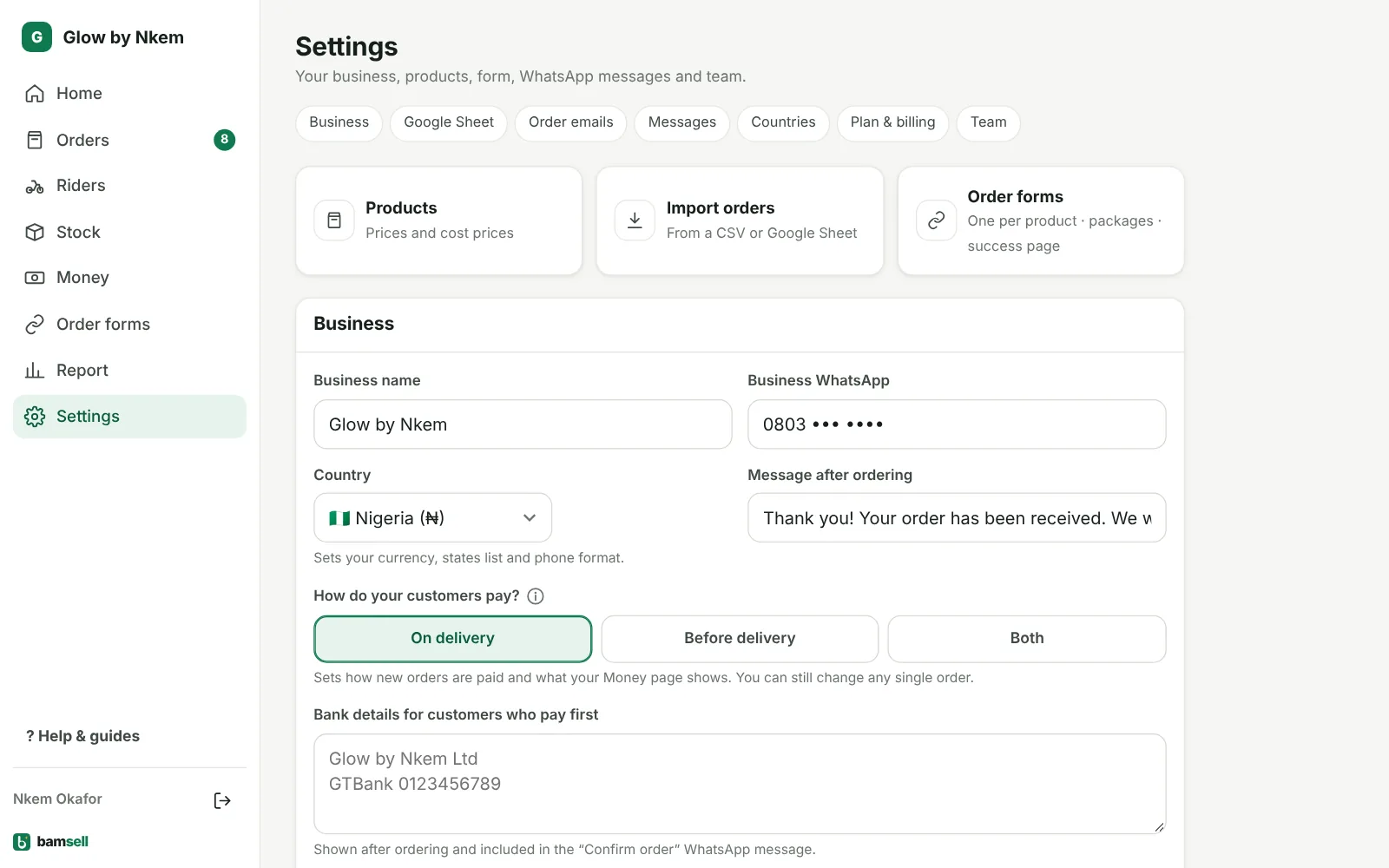
In Bamsell -
3Scan with your phone
On the phone with your business WhatsApp: tap the three dots (Android) or Settings (iPhone) → Linked devices → Link a device, then point the camera at the QR code.
-
4No second screen? Use your phone number
If you are setting up on the same phone, tap Use phone number instead, enter your business WhatsApp number and tap Get my code. On the phone, go to Linked devices → Link a device → Link with phone number instead and type the 8-character code. The code works for about 3 minutes; tap Get a new code if it runs out.
-
5Selling in Ghana too? Use one number
Switch to the other country, open Settings → WhatsApp connection and tap Use this number next to your linked number (for example your Nigerian number for Ghana). Both countries then send from the same WhatsApp, paced together so the number stays safe. Customers can have Nigerian or Ghanaian numbers either way. Prefer a separate number? Tap Link a different number.
-
6Choose what goes out automatically
Leave Send messages automatically on. Only three messages are sent: Confirm order when an order comes in, Rescheduled as a reminder the day before the new date, and Call back when you couldn’t reach the customer.
-
7Edit the wording
Under WhatsApp messages in Settings you can change each message. Words in {braces} such as {name}, {product} and {amount} are filled in for every order.
-
8Keep your number safe
Use a number that has been active for a while, only message people who ordered, and keep messages personal. Replies from customers stay in WhatsApp on your phone.
-
9Growth or Scale plan? Official WhatsApp
Instead of the Quick link you can connect Official WhatsApp: Meta’s own way, with no logouts and no bans. Your number must be on the WhatsApp Business app (free from the app store; it keeps your chats). In Settings → WhatsApp connection tap Connect with Facebook, log in with the Facebook account of your business, choose Connect your existing WhatsApp Business app and confirm on your phone. Your number keeps working in the WhatsApp Business app. Customers get the order message with Yes, deliver it and Cancel order buttons, and their tap updates the order by itself. Meta charges your card a few naira per message (Meta Business Settings → Billing); messages you type yourself in the app stay free. WhatsApp Web on that number is logged out – that’s Meta’s rule. You can switch back to the Quick link any time.