Track sales with Facebook and TikTok
Count every order as a Purchase so your ads learn who buys.
- In Facebook Events Manager, copy your Pixel ID (numbers only).
- Paste it in Settings → Facebook Pixel ID (TikTok works the same).
- Optional: set a Success page on a form to fire Purchase on your own site.
-
1Find your Pixel ID
Open Facebook Events Manager → Data sources → your pixel. The Pixel ID is the long number under its name. For TikTok: TikTok Ads Manager → Assets → Events → Web events and copy the pixel code.
-
2Add it to Bamsell
Go to Settings and paste it into Facebook Pixel ID (or TikTok Pixel ID). Save. Your order forms now send PageView, InitiateCheckout and Purchase with the real order value.
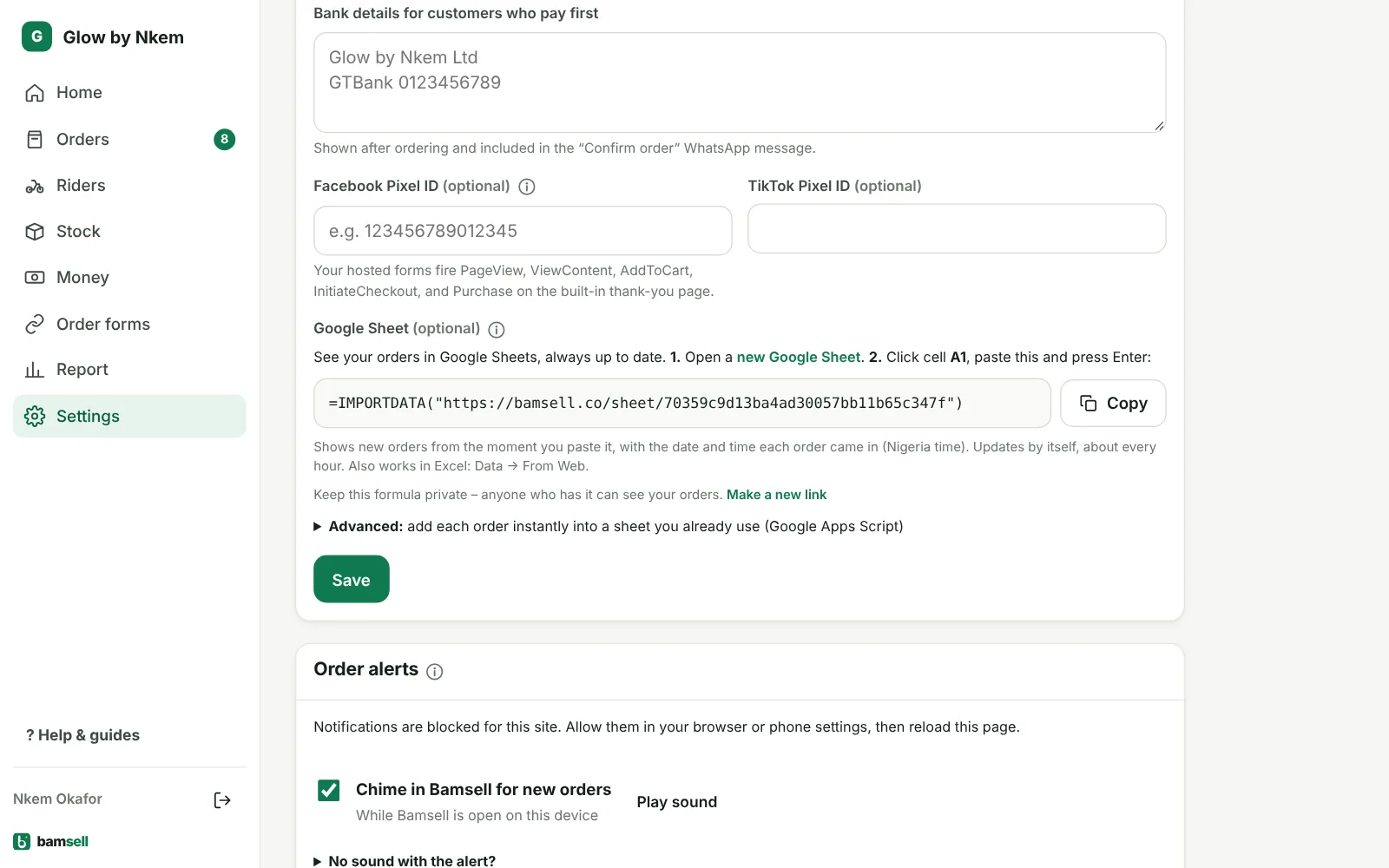
In Bamsell -
3Using your own thank-you page instead
Open a form → After the order → paste your thank-you page link as the Success page. Turn on Add the order details to the link so your page receives the value and currency, e.g.
fbq('track','Purchase',{value: params.value, currency: params.currency}). -
4Test it
Install the Meta Pixel Helper browser extension, place a test order and check that a Purchase event shows with the right amount.